Saturday, December 30, 2023

Python on Raspberry Pi


Python on Raspberry Pi

Python 3 is installed by default on Raspberry Pi OS and is used for many important functions. Interfering with the system Python installation can cause problems for your operating system, so it’s important that if you install third-party Python libraries, you use the correct package-management tools.

There are two routes to installing libraries into the default python distribution. You can use apt and install pre-configured system packages, or you can use pip to install packages which are not distributed as part of Raspberry Pi OS.

IMPORTANT
From Bookworm onwards, packages installed via pip must be installed into a Python Virtual Environment using venv. This has been introduced by the Python community, not Raspberry Pi; see PEP 668 for more details.

Installing Python packages using apt

IMPORTANT
Installing packages using apt is the preferred method for installing Python libraries on Raspberry Pi OS.

Packages installed via apt are tested, are usually pre-compiled so they install faster, and are designed for Raspberry Pi OS. They won’t break your system. Installing via this route also means that all required dependencies are also installed, and a log of installation is maintained by the OS so installation can be easily rolled back (uninstalled) if needed.

For instance, to install the Python 3 library to support the Raspberry Pi Build HAT you would:

$ sudo apt install python3-build-hat

…​to install the pre-built library.

Using apt makes installing larger packages, like numpy (which has many native dependencies including a Fortran compiler), much simpler than installing individual packages using Python’s own package-management system.

If you want to install a Python library called "foobar" you can use apt search foobar to find the exact package name. In most cases, you’ll find that the required package is going to be called python-foobar or python3-foobar.

About Python virtual environments

In previous versions of the operating system, it was possible to install libraries directly, system-wide, using the package installer for Python, commonly known as pip. You’ll find the following sort of command in many tutorials online.

$ pip install buildhat

In newer versions of Raspberry Pi OS, and other operating systems, this is disallowed. If you try and install a Python package system-wide you’ll receive an error similar to this:

$ pip install buildhat
error: externally-managed-environment

× This environment is externally managed
╰─> To install Python packages system-wide, try apt install
  python3-xyz, where xyz is the package you are trying to
  install.

  If you wish to install a non-Debian-packaged Python package,
  create a virtual environment using python3 -m venv path/to/venv.
  Then use path/to/venv/bin/python and path/to/venv/bin/pip. Make
  sure you have python3-full installed.

  For more information visit http://rptl.io/venv

note: If you believe this is a mistake, please contact your Python installation or OS distribution provider. You can override this, at the risk of breaking your Python installation or OS, by passing --break-system-packages.
hint: See PEP 668 for the detailed specification.

This error is generated because you’re trying to install a third-party package into the system Python. A long-standing practical problem for Python users has been conflicts between OS package managers like apt and Python-specific package management tools like pip. These conflicts include both Python-level API incompatibilities and conflicts over file ownership.

Therefore from Bookworm onwards, packages installed via pip must be installed into a Python virtual environment using venv. A virtual environment is a container where you can safely install third-party modules so they won’t interfere with, or break, your system Python.

Using pip with virtual environments

To use a virtual environment you will need to create a container to store the environment. There are several ways you can do this depending on how you want to work with Python.

Using a separate environment for each project

One way you can proceed is to create a new virtual environment for each Python project you make. Here, you’ll create a directory to hold your own code along with a virtual environment directory:

$ mkdir my_project
$ cd my_project
$ python -m venv env

If you now look inside the my_project directory you’ll see a directory called env.

$ ls -la
total 12
drwxr-xr-x  3 pi pi 4096 Oct  3 14:34 .
drwx------ 20 pi pi 4096 Oct  3 14:34 ..
drwxr-xr-x  5 pi pi 4096 Oct  3 14:34 env
$
NOTE
If you want to inherit the currently installed packages from the system Python, you should create your virtual environment using python -m venv --system-site-packages env.

Inside this directory is a full Python distribution. To activate your virtual environment and make that version of Python the one you’re currently using, you should type:

$ source env/bin/activate
(env) $

You’ll see that your prompt is now prepended with (env) to indicate that you’re no longer using the system Python. Instead, you’re using the version of Python contained inside your virtual environment. Any changes you make here won’t cause problems for your system Python; nor will any new modules you install into your environment.

(env) $ which python
/home/pi/my_project/env/bin/python

If you install a third-party package, it’ll install into the Python distribution in your virtual environment:

(env) $ pip install buildhat
Looking in indexes: https://pypi.org/simple, https://www.piwheels.org/simple
Collecting buildhat
  Downloading https://www.piwheels.org/simple/buildhat/buildhat-0.5.12-py3-none-any.whl (57 kB)
     ━━━━━━━━━━━━━━━━━━━━━━━━━━━━━━━━━━━━━━━━ 57.8/57.8 kB 2.8 MB/s eta 0:00:00
Collecting gpiozero
  Downloading https://www.piwheels.org/simple/gpiozero/gpiozero-2.0-py3-none-any.whl (150 kB)
     ━━━━━━━━━━━━━━━━━━━━━━━━━━━━━━━━━━━━━━━ 150.5/150.5 kB 6.9 MB/s eta 0:00:00
Collecting pyserial
  Downloading https://www.piwheels.org/simple/pyserial/pyserial-3.5-py2.py3-none-any.whl (90 kB)
     ━━━━━━━━━━━━━━━━━━━━━━━━━━━━━━━━━━━━━━━━ 90.6/90.6 kB 7.5 MB/s eta 0:00:00
Collecting colorzero
  Downloading https://www.piwheels.org/simple/colorzero/colorzero-2.0-py2.py3-none-any.whl (26 kB)
Requirement already satisfied: setuptools in ./env/lib/python3.11/site-packages (from colorzero->gpiozero->buildhat) (66.1.1)
Installing collected packages: pyserial, colorzero, gpiozero, buildhat
Successfully installed buildhat-0.5.12 colorzero-2.0 gpiozero-2.0 pyserial-3.5
(env) $

Now, if you pip list, you’ll see that your current version of Python includes your new modules.

(env) $ pip list
Package    Version
---------- -------
buildhat   0.5.12
colorzero  2.0
gpiozero   2.0
pip        23.0.1
pyserial   3.5
setuptools 66.1.1

After writing your code, you can run it from the command line inside the virtual environment as you’d expect, by invoking Python as usual.

(env) $ ls -la
total 12
drwxr-xr-x  3 pi pi 4096 Oct  3 14:34 .
drwx------ 20 pi pi 4096 Oct  3 14:34 ..
drwxr-xr-x  5 pi pi 4096 Oct  3 14:34 env
-rw-r--r--  1 pi pi    0 Oct  3 14:45 my_code.py
(env) $ python my_code.py
Hello World!
(env) $

You can leave your virtual environment and return to using the system Python by typing:

(env) $ deactivate
$

…​and demonstrate to yourself you’ve done so by checking the installed packages using pip list.

Using a separate environment for each user

An alternative method to creating a virtual environment for each of your Python projects is to create a single virtual environment for your user account, and then activate that environment before running any of your Python code. This approach may be preferred if you commonly install the same set of modules for each project, and don’t want to have to bother creating individual Python environments for each project, essentially just duplicating your environment.

$ python -m venv ~/.env
$ source ~/.env/bin/activate
(.env) $

You can again check you’re in a separate environment by using pip list,

(.env) $ pip list
Package    Version
---------- -------
pip        23.0.1
setuptools 66.1.1

and leave it using deactivate.

(.env) $ deactivate
$

Using the Thonny editor

Thonny is our recommended editor when you’re working with Python on the Raspberry Pi. By default Thonny uses the system Python. However, you can switch to using a Python virtual environment by clicking on the interpreter menu located at the bottom right of the Thonny window. Clicking on this will offer you a menu to select a configured interpreter or to Configure interpreter….

thonny venv

Selecting this will open a popup allowing you to create a new virtual environment.


Thursday, December 28, 2023

5G/4G Raspberry 4B openWrt Sample Tutorial


Overview

This tutorial will introduce how to use Raspberry Pi 4B equipped with SIM8202G-M2 HAT module to realize the function of sharing the mobile network with wifi. If you add a UPS as a power source, you can get a portable and portable wireless router. 4G or 5G mobile network anytime, anywhere shared.

Working Principle

  • Soft routing refers to a routing solution formed by using a desktop computer or a server and other equipment with software. It mainly relies on software settings to achieve the function of a router; OpenWrt is a very popular member of the soft routing system. It is a The highly modular and highly automated embedded Linux system has powerful network components and scalability, and is often used in industrial control equipment, routers and other equipment; after the Raspberry Pi is programmed with the OpenWrt soft routing system, the Raspberry Pi itself is It is equivalent to a wireless WIFI router.
  • Remote NDIS (RNDIS) is a bus-independent class specification for Ethernet (802.3) network devices over dynamic Plug and Play (PnP) buses such as USB, 1394, Bluetooth, and InfiniBand. Remote NDIS defines a bus-independent message protocol between a host computer and a remote NDIS device through abstract control and data channels. The implementation of RNDIS based on USB is actually TCP/IP over USB, which is to run TCP/IP on the USB device, making the USB device look like a network card. The advantage of using this protocol is that it has high versatility. In Windows system, it can directly identify and use the external network module by loading the built-in RNDIS driver. Similarly, in the OpenWrt soft routing system, the interface can also be set to DHCP client mode. Connect to the network directly through the module.

Preparations

Hardware Preparation

  • Raspberry Pi, 4g/5g communication expansion module (here takes RM8202G as an example) and its accessories package, SD card, two 5V3A DC power adapters, SIM card that supports and has opened 5G/4G service.

Program Soft Routing Mirror

  • Download the compiled OpenWrt image file and unzip it;
  • Use the burning software to burn the image file in the prepared sd card.

Install the Expansion Board

  • Insert the communication module into the M2 interface of the base plate at an oblique direction, and fix the tail with screws after pressing down;
  • Connect the antenna port on the communication module to the antenna port on the base plate using an IPEX adapter cable, and screw in the four paddle antennas respectively.
  • Use the accessory package USB-A male to A male cable or adapter to connect the Raspberry Pi to the expansion module with the communication module installed (try to connect the Raspberry Pi USB3.0 interface).

Installation renderings

Configure the RNDIS Dial-up Mode

  • Connect the module to the Raspberry PI or Jetson Nano via USB port, then execute the command to see if ttyUSB2 can be detected normally, if possible, open the port via minicom:
ls /dev/ttyUSB*
sudo apt-get install minicom
sudo minicom -D /dev/ttyUSB2
  • SIM82XX sends the following command through minicom and waits for the module to restart.
at+cusbcfg=usbid,1e0e,9011
  • RM5XXX sends the following command through minicom and waits for the module to restart.
AT+QCFG="usbnet",3
AT+QNETDEVCTL,3,1 = 2
AT+CFUN = 1, 1

Configuration Usage

Connect and configure Raspberry Pi OpenWrt system WIFI

  • After burning the OpenWrt system, insert the SD card into the Raspberry Pi motherboard, the default network port IP is: 192.168.1.1, and the default is 5G WIFI router.
  • You can search through the mobile phone WIFI, find the WIFI open hotspot whose default name is "OpenWrt", and then connect
  • Open the browser, enter: 192.168.1.1, the default username: root, the default password: password, and then you can enter the router management interface.
  • Insert the sim card into the card slot of the communication module, turn the switch to the position of the external power supply ((EXT PWR)), and the module will turn on after the external power supply is connected;
  • Add new interface: Network -> Interfaces -> Add New Interface.

OpenWrt SIM8202G 1.png

  • Create new interface: name of new interface - SIM8202G; protocol of new interface - DHCP client; include the following interfaces - ethernet adapter: "usb0"; submit.

OpenWrt SIM8202G 2.png

  • Configuration interface: Firewall settings - wan; save & apply.

OpenWrt SIM8202G 3.png

  • Wireless configuration: Network -> Wireless -> Modify -> Interface Configuration -> Basic Settings -> Check SIM8202G in Network; Save & Apply.

OpenWrt SIM8202G 4.pngOpenWrt SIM8202G 5.png

Network Speed Test

RM50XQ Network Speed Test
  • Install speed testing software, such as Internet Speed Manager and other speed testing software, you can choose to download the speed test at www.speedtest.cn/pc/download.

About the speed testing

As there will be many inconsistencies between actual and laboratory conditions that will result in 5G speeds that are not ideally stable at 100MBPS, there are the following.

  • Base station distance, the closer to the 5G base station the better the signal and the faster the speed.
  • Base station load, the fewer people using it the faster it will be, and the slower it will be during peak commuting periods.
  • Number of base stations: due to the spectrum, an equal amount of 4G coverage requires double the number of 5G base stations.
  • Operator: you need to confirm your 5G card, and whether the speed is limited, you can regularly ask the operator to reset your network.
  • Indoor is worse than outdoor: building penetration attenuation, and indoor bypass attenuation.

PS: The current number of base stations still does not have good coverage, and the speed measurement is not quite the same in different locations.


Resource

Software

Image

Thursday, December 21, 2023

CAN communication with RASPBERRY-PI


CAN communication on the Raspberry PI with Socket CAN


What do you need

As illustrated in the image below, you need four things to complete this tutorial:


  1. A Raspberry PI with installed Raspberry PI operating system.
  2. One Waveshare RS485/CAN hat.
  3. A CAN bus with proper termination.
  4. At least one other CAN node for testing.

Waveshare RS485/CAN hat installation:

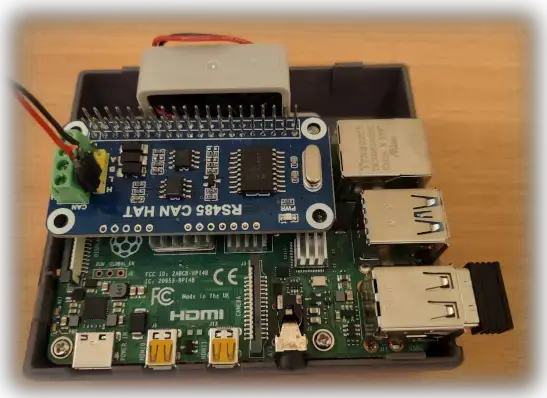
As a first step, physically attach the Waveshare RS485/CAN hat to the 40-pin GPIO connector on your Raspberry PI. A properly installed Waveshare RS485/CAN hat looks like this on my Raspberry PI 4:

Picture of what a properly installed Waveshare RS485/CAN shield looks like on a Raspberry PI 4.

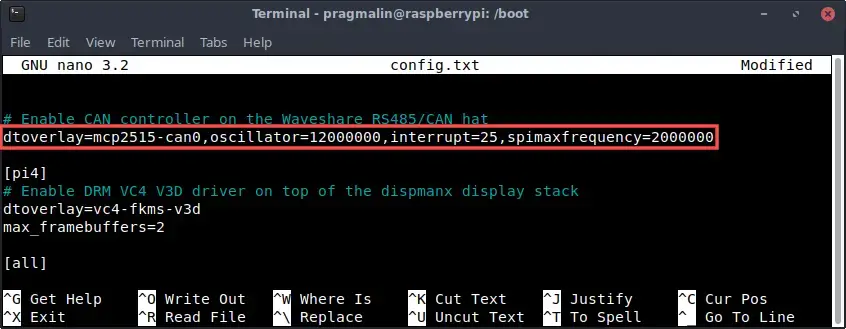
The Linux kernel of the Raspberry PI operating system can handle a CAN device, based on the Microchip MCP2515. We just need to enable it with the help of a device tree overlay. Assuming that your Raspberry PI is all booted up, run the following command to edit the config.txt file in the boot partition:

  • sudo nano /boot/config.txt

Add this line to the file:

  • dtoverlay=mcp2515-can0,oscillator=12000000,interrupt=25,spimaxfrequency=2000000
Nano editor screenshot of file /boot/config.txt. It shows the device tree overlay statement needed to enable a Microchip MCP2515 CAN controller SPI based SocketCAN device on the Raspberry PI.

This assumes the manufacturer installed a 12 MHz crystal oscillator on your Waveshare RS485/CAN hat. It’s the shiny silver colored and oval shaped component on the edge of the board. The number on it should read 12.000. Older versions of the board come with an 8 MHz crystal oscillator. If you own such an older version, set oscillator=8000000 and spimaxfrequency=1000000.

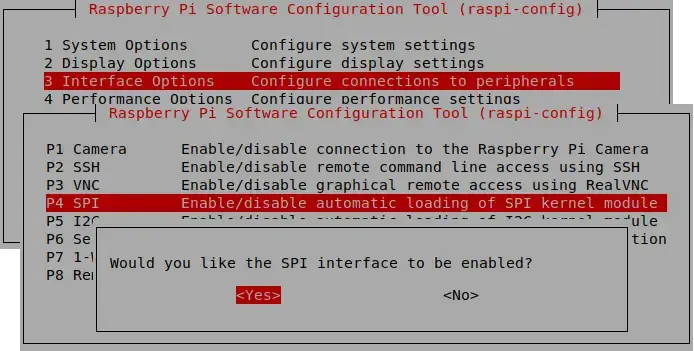
One more step, before we can use the Waveshare RS485/CAN hat as a SocketCAN interface on the Raspberry PI: We need to enable SPI communication with the help of the raspi-config tool. Open it by running command:

  • sudo raspi-config

Go to section Interface Options → SPI and select Yes to enable the SPI interface.

Screenshots of the Raspberry PI configuration tool (raspi-config), showing you how to enabled the SPI interface.

This completes the installation of the Waveshare RS485/CAN hat on the Raspberry PI. Reboot your Raspberry PI, before continuing with the next section, where we set it up as a SocketCAN interface.

Verify the detection of the Waveshare RS485/CAN hat

In the previous section, we prepared our Raspberry PI to the point that the Linux kernel should:

  1. Detect the presence of the Waveshare RS485/CAN hat.
  2. Recognize its Microchip MCP2515 CAN controller as a CAN device that the Linux kernel can work with.

Probably a good idea to verify this, before moving forward. Run the following command to list all CAN devices that the Linux kernel detected:

  • ip addr | grep "can"
Terminal screenshot showing the output of the "ip addr" command for listing the CAN devices that the Linux kernel detected.

In the previous screenshot, you can see that the Raspberry PI operating system detected and recognized the Waveshare RS485/CAN hat. Furthermore, we can deduce that the Linux kernel assigned it the can0 network interface name and that it’s in the DOWN state. All good so far.

Load the SocketCAN kernel modules

Before our Raspberry PI can bring the can0 SocketCAN network interface in the UP state, we need to first load the SocketCAN related kernel modules. Open up the terminal again and run these commands:

  • sudo modprobe can
  • sudo modprobe can_raw

To verify that the SocketCAN related kernel modules loaded properly, run:

  • lsmod | grep "can"
Terminal screenshot showing the output of the "lsmod" command, used to verify that the can and can_raw kernel modules were properly loaded using "modprobe".

Configure and bring up the SocketCAN network interface:

After loading the CAN related kernel modules, we continue with the final step: Bring the can0 SocketCAN network interface in the UP state. It is a two step process:

  1. Configure the SocketCAN network interface.
  2. Transition the SocketCAN network interface to the UP state.

Commencing with the first step, open up the terminal and run the command:

  • sudo ip link set can0 type can bitrate 500000 restart-ms 100

This configures the can0 network interface for a CAN communication speed of 500,000 bits/second. Feel free to adjust this to match the CAN communication speed on your CAN bus. Furthermore, it configures can0 to automatically re-initialize the CAN controller in case of a CAN bus off event, after 100 milliseconds. Feel free to adjust this if needed, but 100 milliseconds works fine in most cases.

With the can0 SocketCAN network interface configured, we can attempt to transition it to the UP state. From the terminal run the command:

  • sudo ip link set up can0

To verify that the can0 SocketCAN network interface successfully transitioned to the UP state, you can run the ip addr | grep "can" command one more time:

Terminal screenshot that shows how to configure and bring up a SocketCAN network interface on your Raspberry PI.

Verify the CAN communication with can-utils:

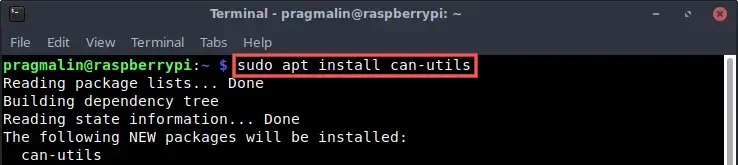
In a nutshell, that’s it. Your Raspberry PI can now participate with the communication on the CAN bus, using the SocketCAN network interface can0. To verify this, we can use the command-line programs of package can-utils. Before we can use these programs, we just need to install the can-utils package on our Raspberry PI system:

  • sudo apt install can-utils
Terminal screenshot that shows how to install the can-utils package in the Raspberry PI operating system.

Receive a CAN message:

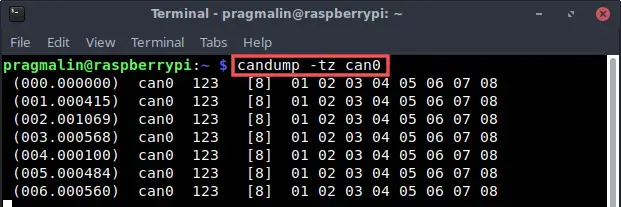
For receiving and displaying CAN messages, we run the candump program from the terminal:

  • candump -tz can0

While running, it lists all received CAN messages. I prefer to add the -tz parameter to show a timestamp for each received CAN message:

Screenshot of running the candump program of the can-utils package. Candump enables you to view the CAN messages that the SocketCAN network interface of your Raspberry PI sees on the CAN bus.

To close the program, press CTRL + c.

In the screenshot you can see that the other CAN node on my CAN bus periodically sends a CAN message. One with identifier 123 (HEX) and 8 data bytes.

Send a CAN message:

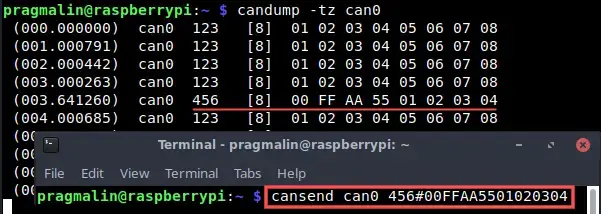
We send a CAN message with the cansend program. For example this CAN message:

  • CAN identifier: 456h
  • CAN data: 00h FFh AAh 55h 01h 02h 03h 04h (8 bytes)

To send this CAN message using our can0 CAN network interface, run this command in the terminal:

  • cansend can0 456#00FFAA5501020304

Note that you can run candump in another terminal at the same time, to see the transmitted message on the CAN bus:

Screenshot of the cansend program in action. Cansend allows you to send CAN messages using the SocketCAN network interface on your Raspberry PI.

Wrap up

This tutorial explained step-by-step how to perform CAN communication on the Raspberry PI with SocketCAN. We used the low cost Waveshare RS485/CAN hat. However, the instructions also apply if you already own USB-to-CAN adapter, supported by SocketCAN. In that case, simply skip the first few sections of this article and start where we loaded the SocketCAN kernel modules.

Note that you need to perform these steps each time you reboot your Raspberry PI:

  • Loading the kernel modules:
    • sudo modprobe can
    • sudo modprobe can_raw
  • Configuring the SocketCAN network interface:
    • sudo ip link set can0 type can bitrate 500000 restart-ms 100
  • Bringing the SocketCAN network interface in the UP state:
    • sudo ip link set up can0

Luckily, you can automatic these steps. Refer to the tutorial about how to automatically bring up a SocketCAN network interface for more information.

During this tutorial, we performed all steps directly in the terminal. This means that the approach also works, when running your Raspberry PI as a headless system.

Where to go from here after configuring a SocketCAN network interface on your Linux system? If you feel like coding, try building your own SocketCAN node application in the C or C++ programming language with the CAPLin framework:

For more SocketCAN and Raspberry PI related articles on the PragmaticLinux blog, follow these links:

Accessing Automation Desk With XIL API via Python:

Quick Overview : Replace the HIL API Python import directive with calls to clr.AddReference() (a command of the Python for .NET package), by...